| date | desc |
|---|---|
| 4 May 2023 | Initial |
The Wavenet Tool within ICON Signals can be used to generate voice recordings from text in WAV format using Google's Wavenet Cloud Text-to-Speech API.
Up to four distinct voices can be included within text
Voice parameters are: language, voice, speed and pitch
The output file can be converted into an Asterisk-compatible format
This functionality is enabled by inclusion of an authentication config file. If the authentication file does not exist on the Signals site, then the Wavenet Tool will not appear within the Signals UI.
Here's a 3-minute video that demonstrates most of the features.
The Wavenet Tool UI is a web page within the Signals UI.
Login to Icon Signals using the administrator username and password
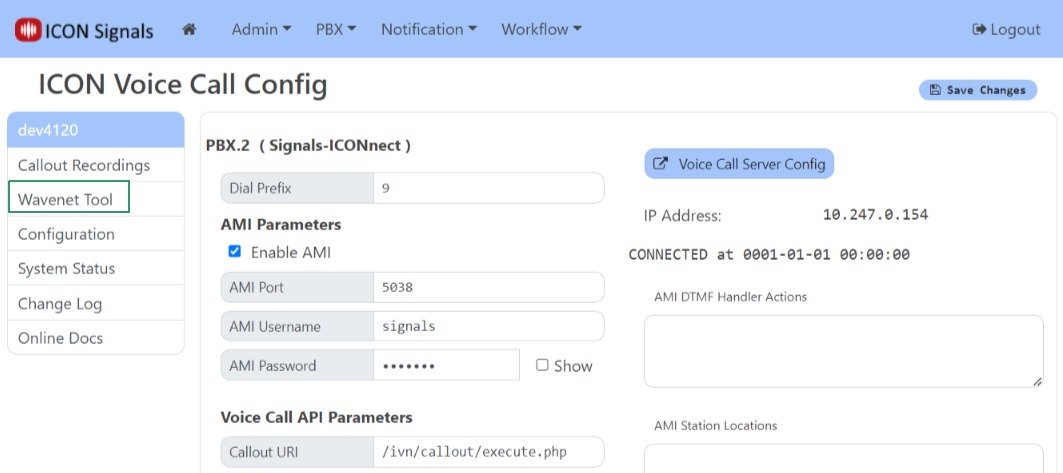
From the top menu, navigate to PBX > ICON Voice Call
Click the Wavenet Tool link on the left side
If you don't see Wavenet Tool in the left side navigation links of the ICON Voice Call Config page, then it is not enabled on that Signals server.
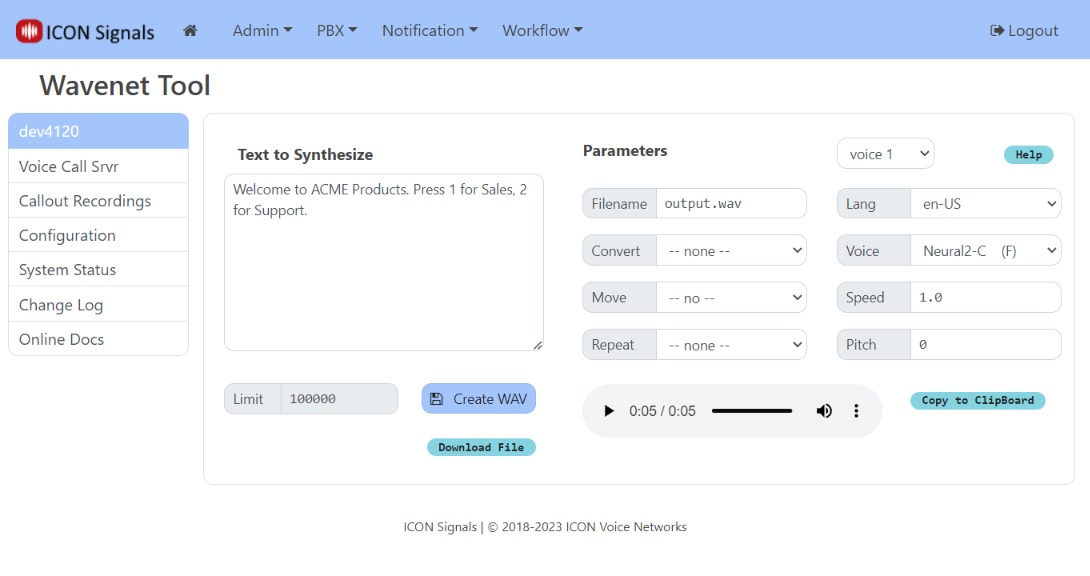
From left to right, the three input areas of this page are:
All input settings data is stored in the local cache of the user's web browser. Visit the page from a different web browser or from a browser on a different PC and the data won't be there.
The basic operation is to enter text and click the Create Wav button. Signals will generate a WAV file with the name given by the Filename parameter on the server. You can subsequently play the WAV using the audio file or download it by clicking Download File.
The Parameter dropdowns control additional actions that can occur when Create WAV is clicked.
The output file can be converted to a format usable by Asterisk (uncompressed 16bit 8khz mono/1 channel).
The output file can be moved to the directory where custom sound files are stored for Signals ICONnect.
The synthesized text output can be repeated a number of times ( thru 5) when producing the WAV output file.
Google Wavenet supports a large number of different voices in various languages. The Wavenet Tool includes the (subjectively) best sounding ones for US English, UK English, Spanish, and French.
Voices have Speed and Pitch variables. Allowed ranges are displayed in mouseover tooltips.
Up to four different voices can be included within text via special curly-brace tags. Voice 1 is the default voice.
Click the Help button in the upper right corner for details.
Recording text may need to be modified at a later date. If that happens, you will want to make note of what voice settings were used. The Copy to Clipboard button enables copy and paste of this information. For example:
Voice 1: en-GB, Neural2-C, Speed: 1.0, Pitch: 0
Voice 2: es-US, News-D, Speed: 0.9, Pitch: 0.1
Voice 3: es-US, Wavenet-A, Speed: 1, Pitch: 0
Voice 4: fr-FR, Neural2-C, Speed: 1.0, Pitch: 0
We suggest keeping both the content text and these settings in a separate notes document for each site.
Text is converted to SSML (Speech Synthesis Markup Language) and sent to cloud servers to generate the WAV file data.
Curly-brace tags { ... } can be included in text to create SSML tags to introduce delays or spell out numbers and letters. Supported curly-brace tags are:
| tag | description |
|---|---|
{pause n} |
delay for n seconds, e.g. {pause 3} |
{pause (n)ms} |
delay for n milliseconds, e.g. {pause 250ms} |
{chars w} |
say individual letters and/or numbers, e.g. {chars ABC123} |
{ord n} |
speak a number as an ordinal, e.g. {ord 23} is 'twenty-third' |
{card n} |
speak a number as a cardinal, e.g. {card 23} is 'twenty-three' |
{audio fn} |
inserts a .wav or .mp3 file stored on the ICON audio host server, e.g. {audio alarm_lohi} |
{voice n} |
switch to different voice parameters (n = 1, 2, 3 or 4) |
All of these tags are case-sensitive.
The Help button in the upper right corner of the Wavenet Tool page displays a help information dialog. It contains all of the above curly-brace details as well as a list of available audio files which can be inserted with the {audio fn} tag.
The next section consists of various text examples. Comments will provide additional details about the use of some of these tags.
The Wavenet Tool does a couple of noteworthy text conversions.
"Smart Quotes" and other questionable characters used by Microsoft Word are converted to their ASCII equivalents.
SSML reserved characters &, <, >, ', and " are converted to their character entity equivalents. (I.e. you can use them in your text.)
In this section we will use the following voice settings, which were obtained by clicking Copy to Clipboard.
Voice 1: en-US, Neural2-C, Speed: 1.0, Pitch: 0
Voice 2: es-US, Neural2-A, Speed: 1.0, Pitch: 0
Voice 3: fr-FR, Neural2-C, Speed: 1, Pitch: 0
Voice 4: en-GB, News-K, Speed: 1.0, Pitch: 0
(3.1) Text with Pauses / Delays
Wavenet has a built-in "natural pause" at the end of a sentence.
This is the first line. And this is the second line.
Will produce a noticable pause compared to:
This is the first line And this is the second line.
You might be able to modify this natural pause by changing the speed of the voice, but SSML contains a tag to insert an additional delay into generated speech files. The Wavenet Tool generates this delay tag when you use the {pause} curly-brace tag.
This is the first line. {pause 3}
And this is the second line after about a 3 second pause.
By default the {pause} tag delays for a given number of seconds, but 's' and 'ms' suffixes are also supported. There must be no whitespace between the digits and 's' or 'ms'.
Here is some text.
{pause 2s} After a long pause.
{pause 600ms} After a short pause.
{pause 200ms} After an even shorter pause.
(3.2) Spelling out Numbers and Letters
This is a numbers and letters test.
Ordinal {ord 123 }. Cardinal {card 123}.
Characters {chars 123xyz}.
We can change the voice and note the differences.
{voice 3}This is a numbers and letters test.
Ordinal {ord 123 }. Cardinal {card 123}.
Characters {chars 123xyz}.
Spanish and French voices will speak English words with an accent. In a later example we will incorporate translated words.
(3.3) Inserting Sounds
We can add sounds to the generated WAV file using the {audio} tag.
Let's embed an alarm tone. {audio alarm_lohi2}
After the alarm tone.
The Wavenet Tool uses sound files (WAV or MP3) installed on an audio server accessible to Google's Cloud Text-to-Speech service. The sound file alarm_lohi2.wav is one of those files.
There are no quotes around the filename in the {audio} tag.
The file extension (.wav) can be ommitted for a WAV file, but must be included for an MP3 file.
Here are the available sound files at the time of this writing.
  alarm.mp3, alarm_lohi, alarm_lohi2
  alarm_buzzer, alarm_horn, acdring1, acdring2
  cmvnini_beep, conftone1, conftone2, conftone3
  tone2sec, tone3sec,
  dnd1, dnd2, dnd3, icmring1, icmring2, icmring3
  transfer1, transfer2, transfer3
(3.4) Using Different Voices
The Wavenet Tool can generate multiple recording segments in different voices and re-combine them. The {voice} tag is used to choose which voice to use for subsequent words. Voice 1 is the default.
Welcome to ICON Voice Networks. Press 1 for English.
{voice 2} Bienvenido a ICON Voice Networks. Presione 2
para espanol.
{voice 3} Bienvenue sur "ICON Voice Networks".
Appuyez sur 3 pour le francais.
{voice 4} Here is an example british voice.
{voice 1} Now we revert back to the original US english voice.
ICON Signals | 2018-2023 ICON Voice Networks