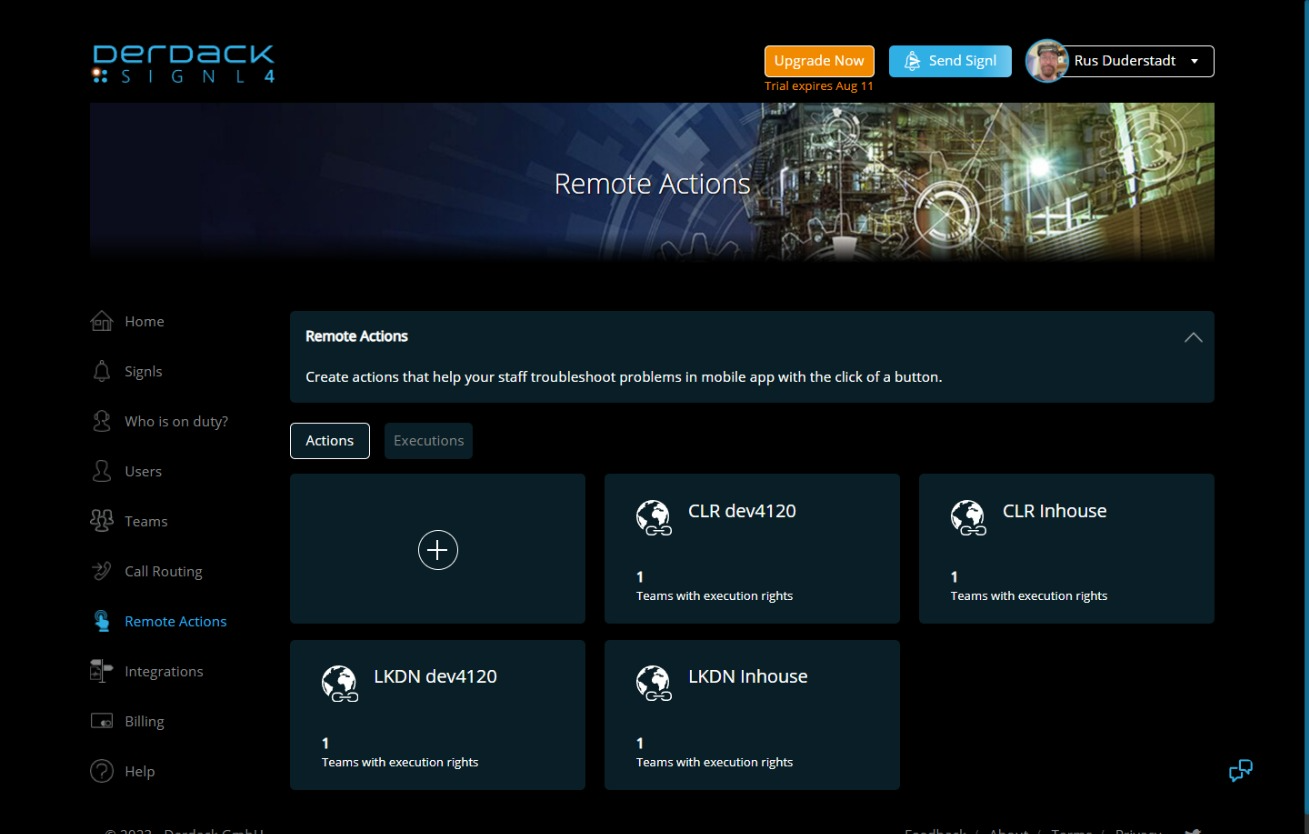
 Figure 2-1: Remote Actions web page
| date | desc |
|---|---|
| 21 Jul 2023 | initial |
This document describes an integration with SIGNL4, a mobile alerting app.
At the time of this writing, the integration is very basic. Essentially it serves as a reference implementation of the Signals Alert API and Data Transfer Connection functionality within ICON Signals.
"Remote Actions" within the SIGNL4 app can be sent to an ICON Signals server via the Signals Alert API.
ON and OFF alert events from ICON Signals can be sent to a SIGNL4 app team and appear as "Signl" events within their mobile app.
Additional integration features are possible. SIGNL4 has an extensive API. For example, an acknowledgment made within the SIGNL4 app could be sent to ICON Signals.
On the SIGNL4 website a team admin can create one or more "remote actions". Essentially these are outgoing HTTP(S) requests to an external system REST API (e.g. the Signals Alert API).
Figure 2-1: Remote Actions web page
The Authentication Header value field should contain the destination BASE64-encoded apikey:{value} data for the Signals Alert API. For example:
Basic YXBpa2V5OklCT04uMTY4Qzk1MTQ= (e.g. apikey:ICON.168C9513)
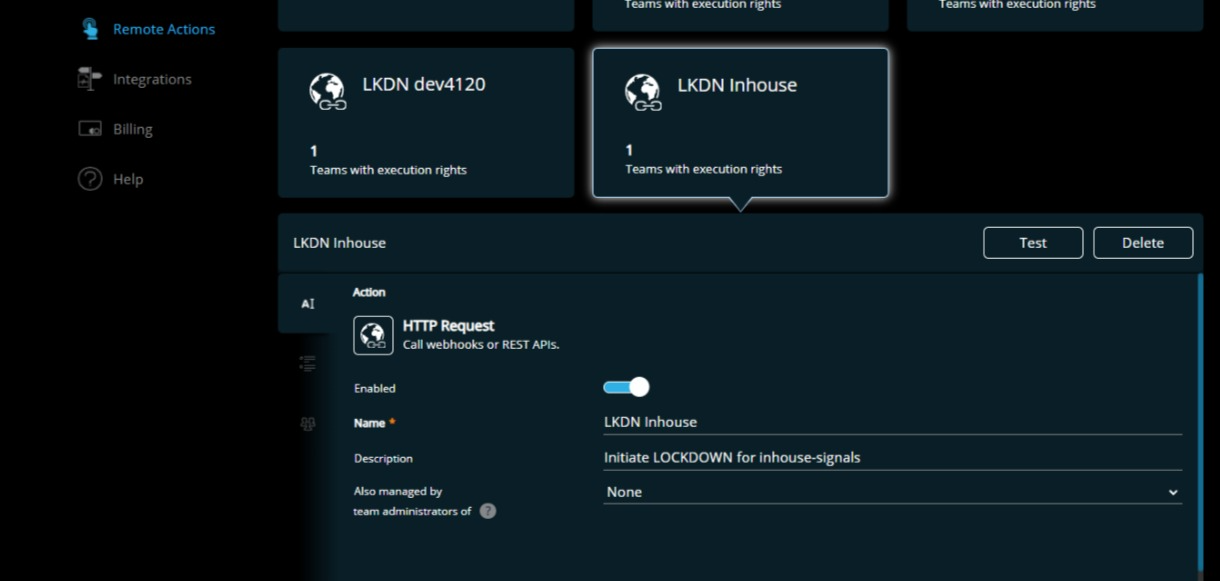
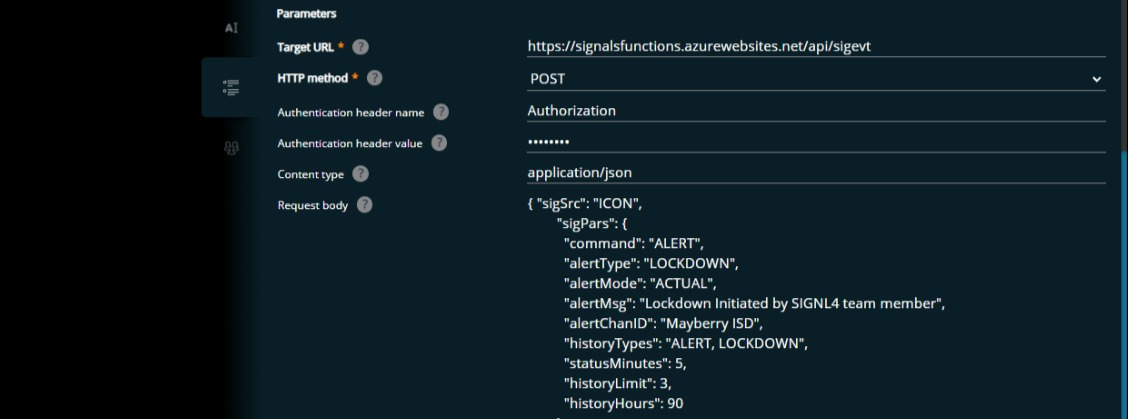 Figure 2-2: Creating / Updating a Remote Action
Each Remote Action appears as a button in the SIGNL4 mobile app.
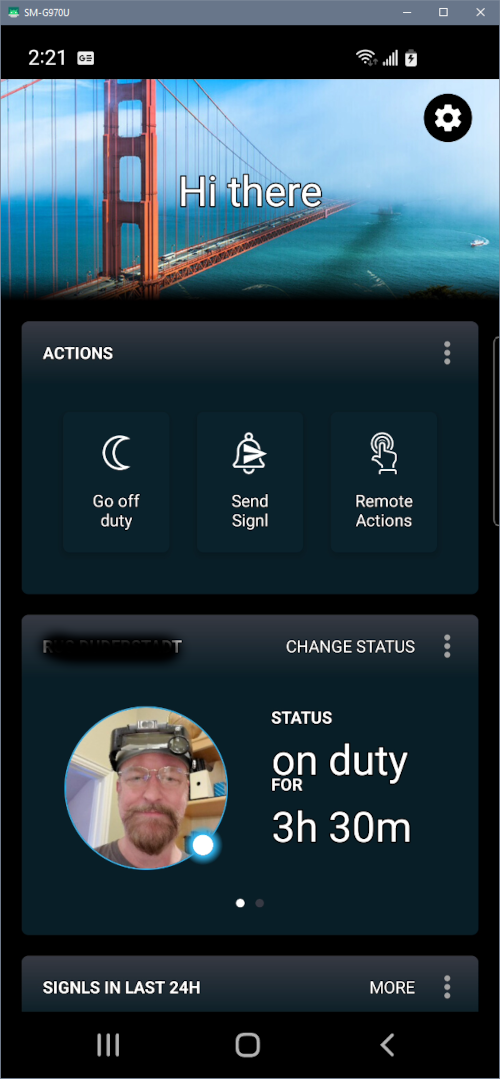
Figure 2-3: Mobile App Home Page
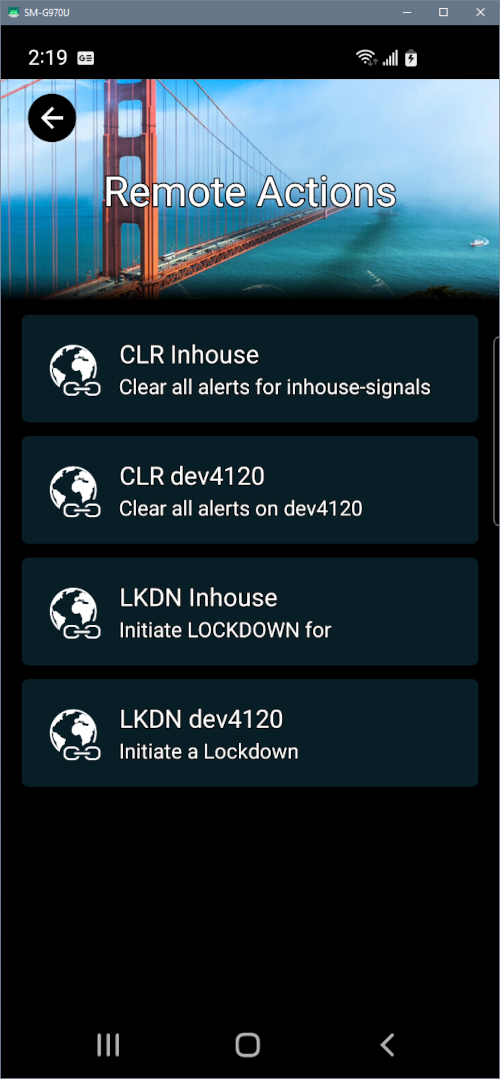
Figure 2-4: List of Remote Actions available in mobile app
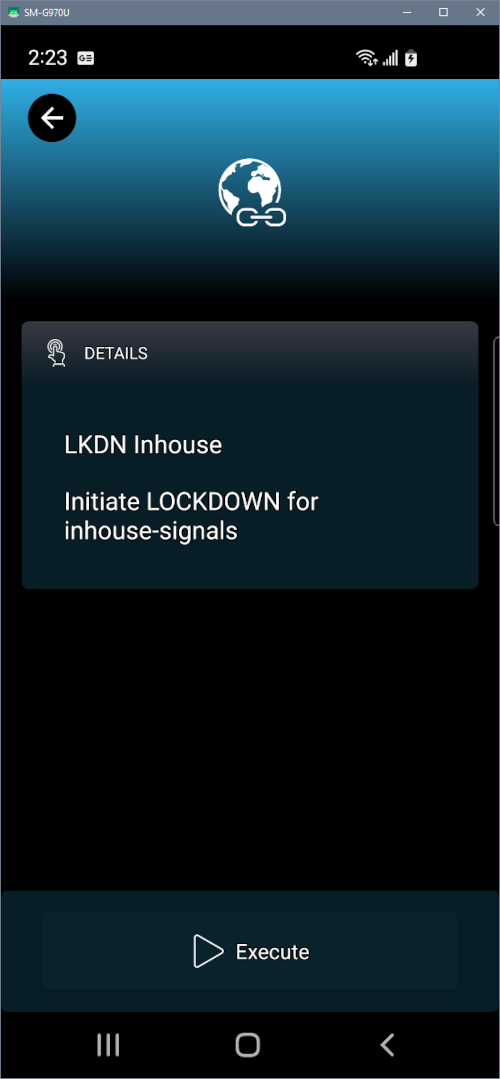
Figure 2-5: Remote Action details
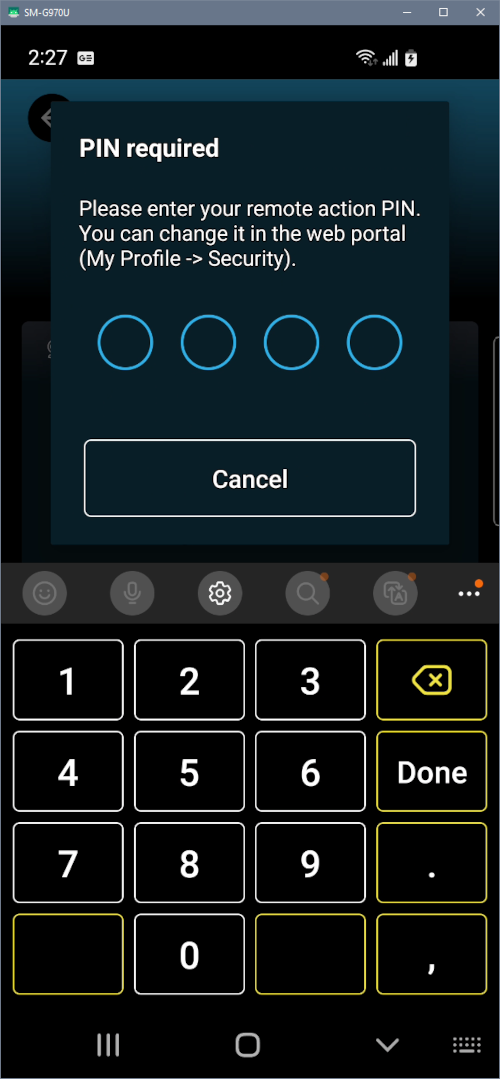
Figure 2-6: A 4-digit PIN must be entered before the Remote Action is executed.
NOTE: At this time, I have not found any way to avoid the need to enter a PIN. I will have further comments in the next section.
The core functionality of the SIGNL4 mobile app revolves around sending and receiving alerts (called "Signls").
At the most basic level, a user can simply send a Signl (alert) to every member of their team or every member of a particular category. Recipients can then acknowledge / close / re-open / escalate the Signl.
Sending a manual Signl involves pressing the Send Signl button (see Figure 2-3), selecting an alert type and pressing the Hold to Send button.
The button must be held for about 3 seconds to send the Signl. This makes it easier to avoid sending unintended alerts. (I wish this was an option for the Remote Action Execute button to avoid the need to enter a PIN.)
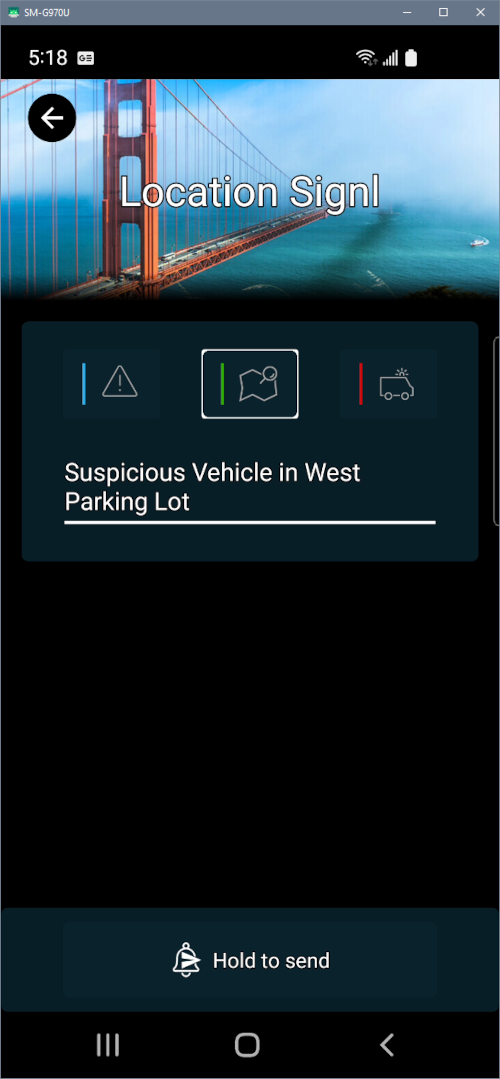
Figure 3-1: Sending a Signl
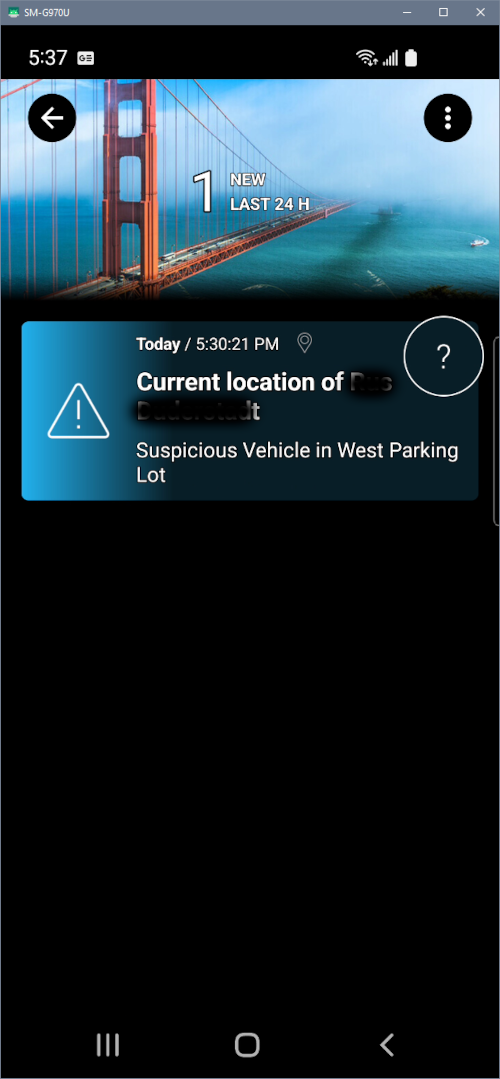
Figure 3-2: Receiving a Signl
Within ICON Signals, a Data Transfer Connection can be configured to send Signls to the SIGNL4 team.
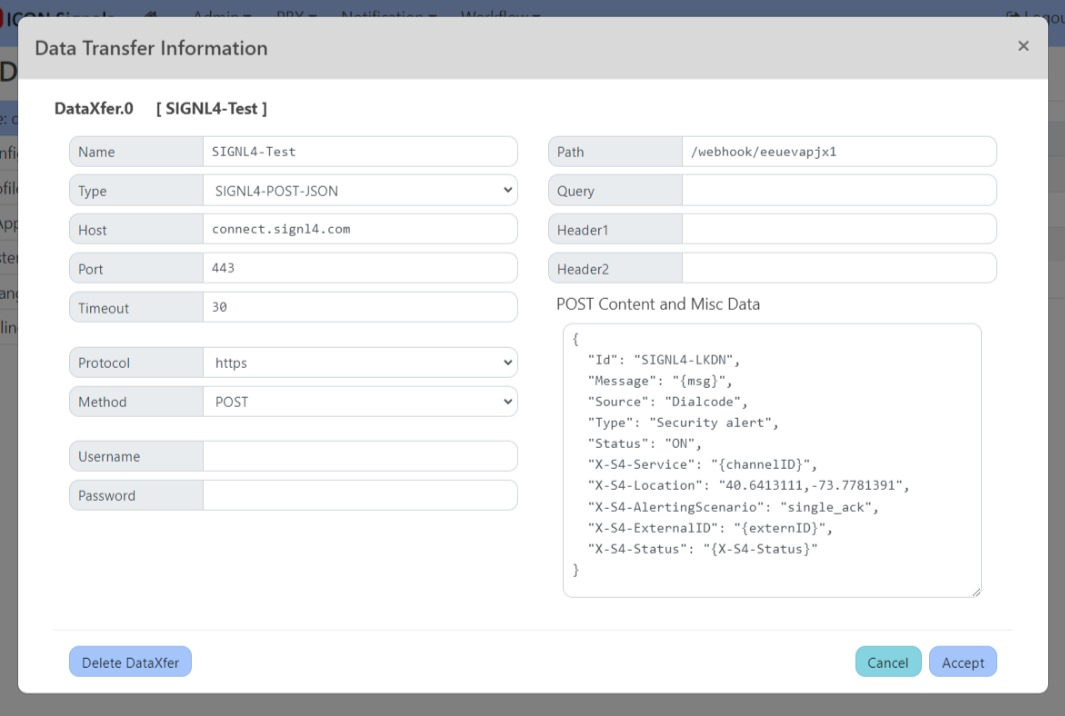
Figure 3-3: SIGNL4 Data Transfer Connection
Special Actions and Variables can be configured in a rule to send a Signl to the SIGNL4 mobile app for each team member.
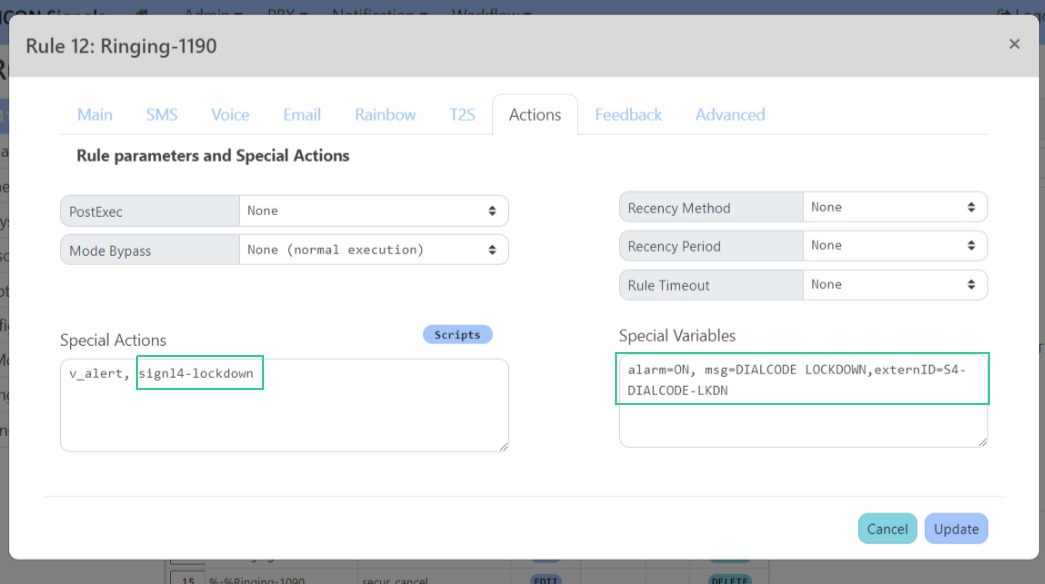
Figure 3-4: Actions Tab in a Rule
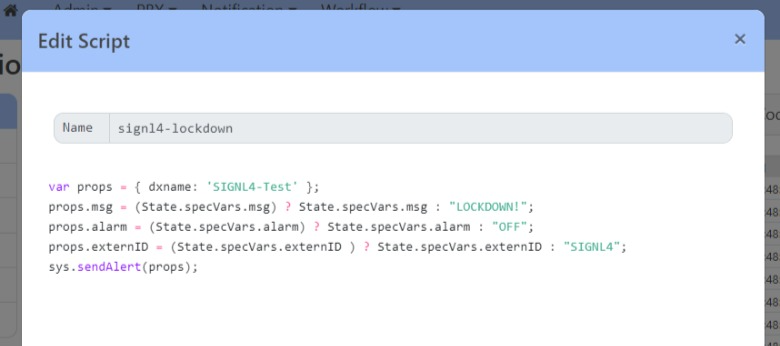
Figure 3-5: Action Script to send a Signl
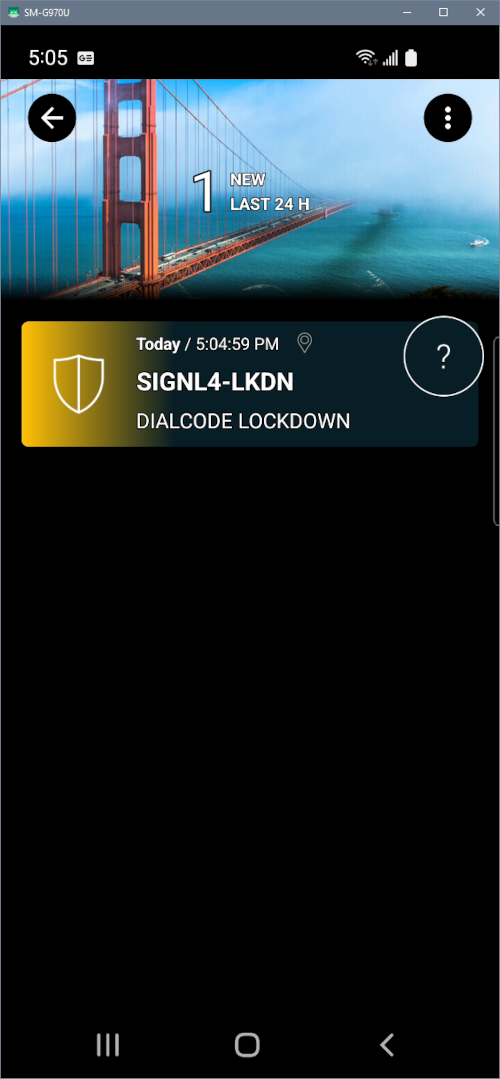
Figure 3-6: Appearance of ICON Signals generated Signl in mobile app
As stated in the introduction, this integration is very preliminary. If customers show an interest in the SIGNL4 app, we can examine it in more detail to see if it can meet their needs.
2018-2023 ICON Voice Networks