| date | desc |
|---|---|
| 30 Aug 2023 | Initial. |
| 1 Mar 2024 | calendar_type design changes. |
| 8 Mar 2024 | More design changes related to adding priority to calendar. Modified screens and text accordingly. |
| 20 Mar 2024 | Added 4.1 OVR calendar_type description. |
| 9 May 2024 | Priority changed to override level, added OverrideByType support. |
This document describes a Calendar integration within ICON Signals.
The proposed use case is to ring school bells - either by activating relays or by making SIP calls and playing bell tones. Other use cases may also come to light.
When a calendar event is triggered, ICON Signals raises a signal and executes a matching calendar rule. This document covers calendar configuration and calendar rule execution. The details of exactly what happens (relay activation or call generation) are not included at this time, but may be added later in the form of examples.
For the remainder of this document we will use the term Calendar to refer to the calendar integration and functionality.
This section covers important low-level details. Most of them will be touched on in the UI section, but probably with less information.
Calendar is somewhat similar to existing Cron-like functionality within Signals. Cron is a scheduling tool used to automate administrative tasks in Unix/Linux operating systems. On some sites, ICON Signals executes Cron rules to generate and email weekly sensor reports.
Like Cron, Calendar operates with a one-minute resolution and has no "memory". You can schedule a calendar event for 9:03am and ICON Signals will raise a calendar event at 9:03am. However, if the Signals server is offline at 9:03am and is not started until 9:10am, it will not "remember" that a calendar event was supposed to occur at 9:03am.
Other minute-related details:
The local time on the Signals server operating system is used.
Calendar checking is done every minute, but does not occur precisely at the beginning of the minute.
Calendar events can be scheduled for any minute of the day except 12:00am or 12:01am.
The earliest calendar event time that can be scheduled is 12:02am. The 12:00am / 12:01am restriction is due to how Signals performs a rollover from one calendar day to the next.
Calendar Entries, or "Calendar Rows", are covered in the next section, but some fundamental points are:
Calendar Entries are matched against the current date, or a date to be checked (more on that later).
The current date must fall within the Start Date and End Date for an entry in order for it to be a match.
The 'Days' field of the entry must also match the current day of the week.
Two types of Signals Integration Data Rows are used in this application: calendar and calendar_type.
calendar records determine when calendar events should occurcalendar_type records are associated with what happens when a calendar event is due(2.3.1) calendar
These data rows are referred to as "calendars" or "calendar entries" in this document. They have the following columns:
"Type" refers to the calendar_type descriptor.
(2.3.2) calendar_type
These data rows have the following columns:
The Type value in calendar_type integration data rows is unique. It is part of the signal name for the signal raised when a calendar event comes due.
Two calendar types are created automatically if they don't already exist the first time the calendar UI is used.
| type | description |
|---|---|
| IND | independent (never overridden) |
| STD | standard (a default type) |
When Signals calculates the calendar events for the day, calendars with higher "override levels" override those with lower level values. For example, if there is an override level 3 calendar for today, any level 1 and level 2 calendars with be ignored. (i.e. they have been "overridden").
The only exception is calendars with an override level of 0, which are not subject to being overridden. These calendar events should occur regardless of work or school schedules. For example, a calendar rule to generate a weekly environmental sensor report would be a good candidate for an independent calendar entry.
Additional calendar types can be defined. Type descriptors should be short and upper-cased. 2, 3, or 4 character values are strongly recommended. Mixed case or other variants have not been tested and will not be supported.
'NUL' is used as an internal calendar type descriptor for daily calendar override and is not available as a custom calendar type descriptor.
'OVR' is another internal calendar type descriptor not available as a custom calendar type descriptor.
When a calendar event is triggered, a signal is raised with the following name:
CAL-{type}-{day of week code}For example:
CAL-STD-M for a standard calendar event occurring on a MondayThis is where custom calendar entry types can be useful. Suppose a Signals site includes an elementary school and a combined middle / junior high school. Calendar types 'ELEM' and 'MSJH' would raise signals with names: CAL-ELEM-M and CAL-MSJH-M. Different rules can be written to ring bells at different times and/or locations.
If the C4 value in the OVR integration data row is set to m-d, then the signal name is:
CAL-{type}-{month}-{day of month}For example:
CAL-STD-5-7 for a standard calendar event occurring on May 7.Calendar is built on top of the Signals Integrations Table (Workflow > Integrations).
The Integrations Table is a generic data store for various special-purpose applications. For Calendar we use this interface to create calendar types, but a separate page under the Notification menu (Notification > Calendar) is used to create and edit calendar entries.
The Calendar page appears in the Notification dropdown when at least one rule starting with CAL- exists in the Signals Rule List.
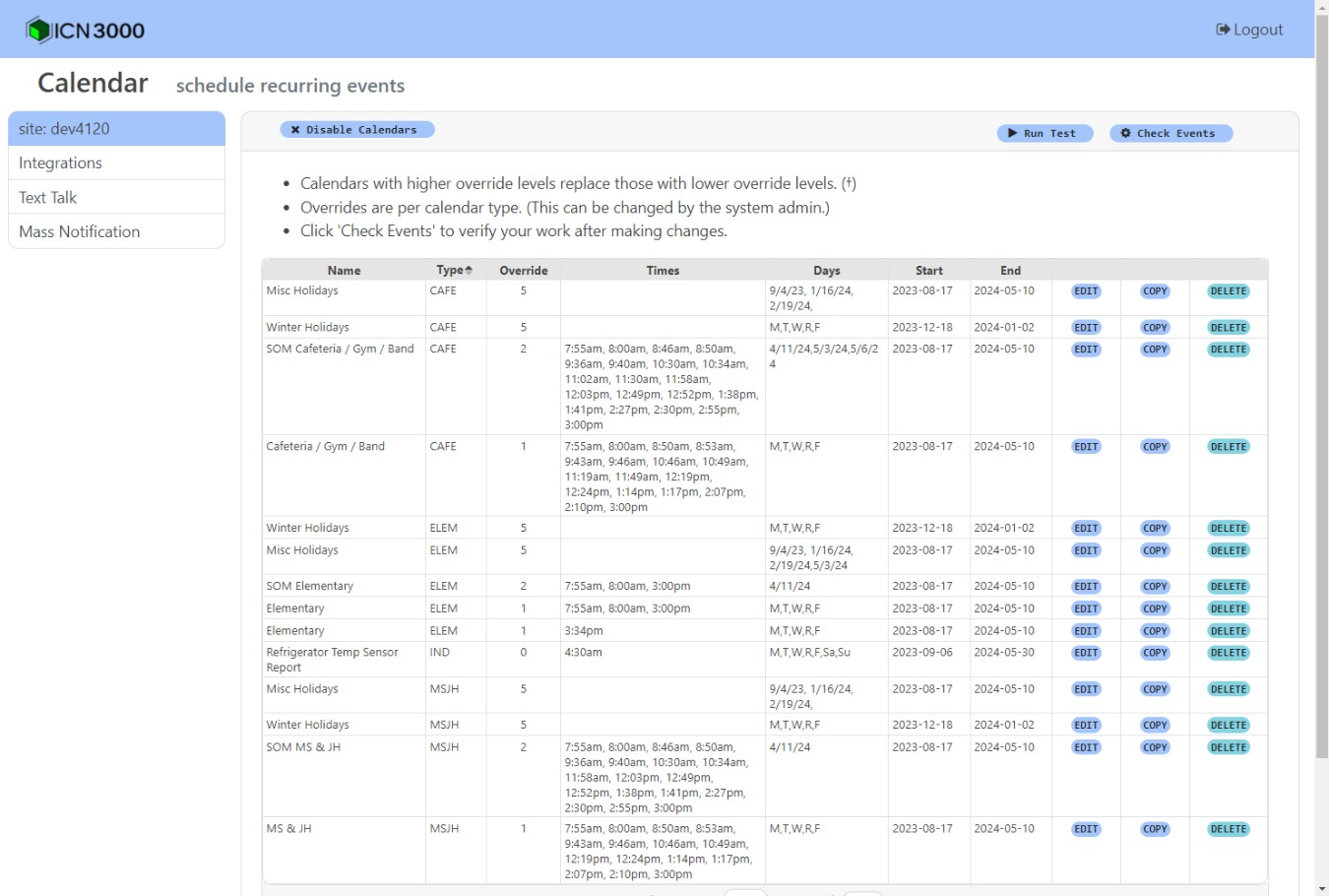
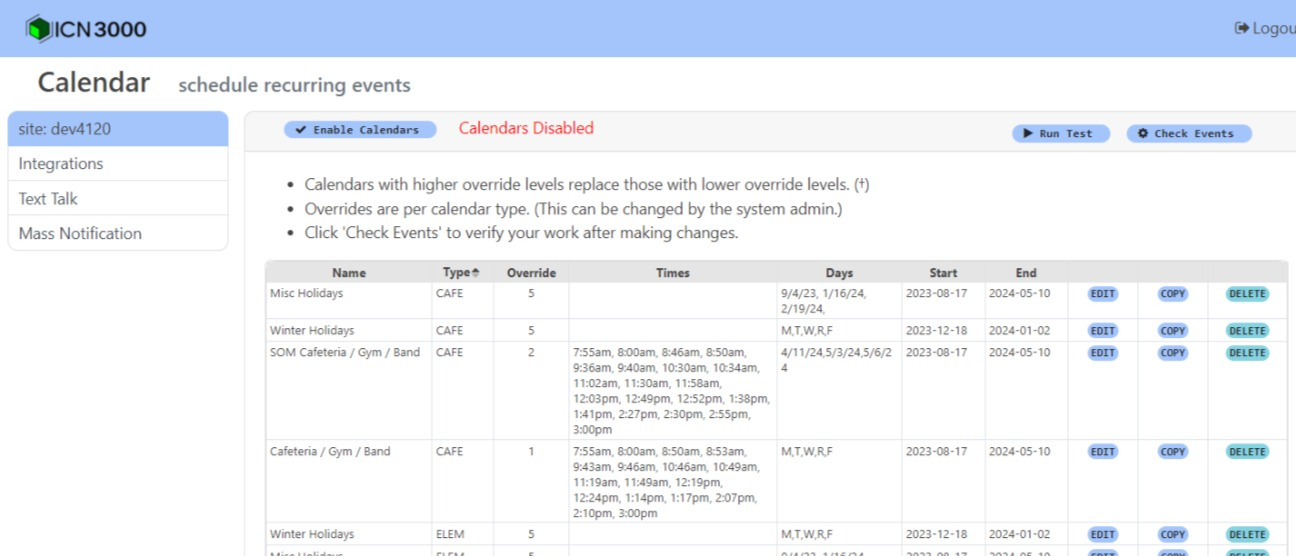
The example rules in the screenshot above illustrate some of the Calendar design principles from the last section. These calendars will execute rules to turn on school bells at various times during the day.
(3.0.1) The holiday calendars have no times. This is expected. Normal calendar entries and their associated event times for school bells should be ignored during holidays.
(3.0.2) The holiday calendars do include Days values. Start, End and Days values are used to determine if a calendar entry applies for a given calendar date.
(3.0.3) Calendar times can be "mixed" with times for other calendars. For example, some of the times for the MSJH calendars are the same as for the ELEM calendars. Those calendar events will raise different signals and execute different calendar rules. In this case, the MSJH and ELEM rules will send the bell tone to different phone extensions.
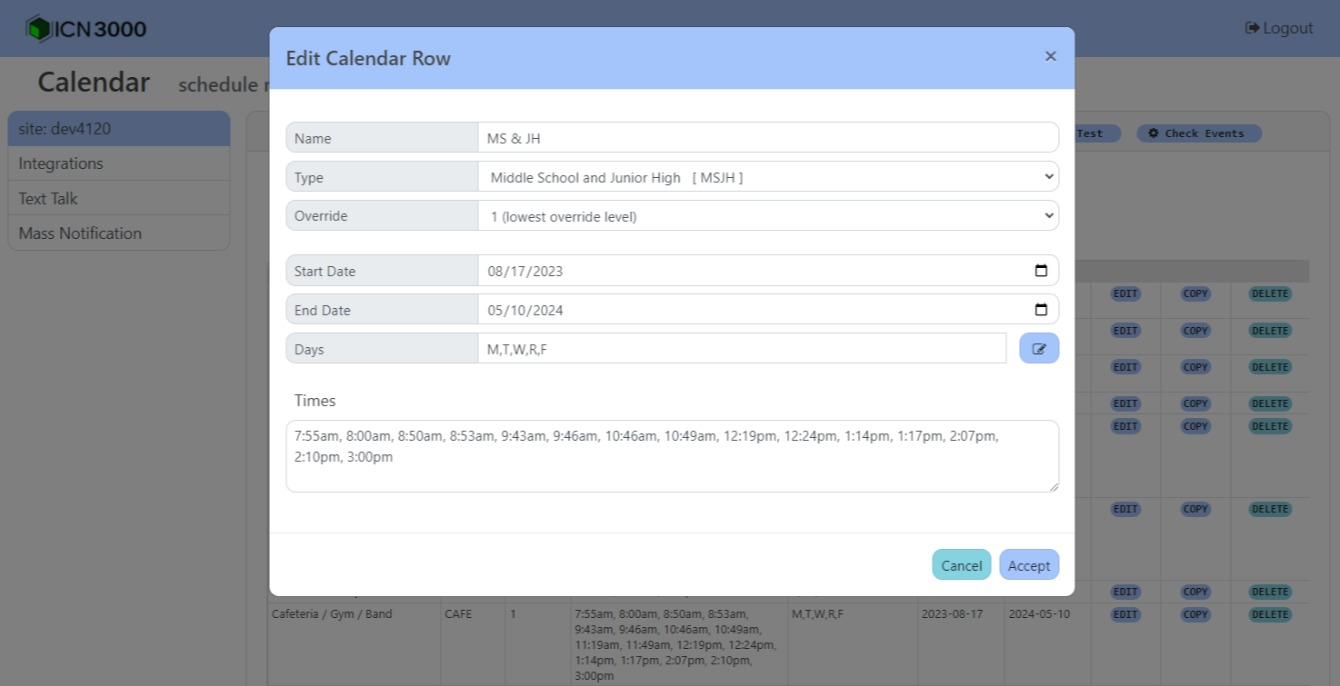
Start Date and End Date can be entered manually or set clicking the date picker icon on the right side of the field.
Times are entered as comma-separated values in either 12-hour or 24-hour format. Invalid time values are ignored.
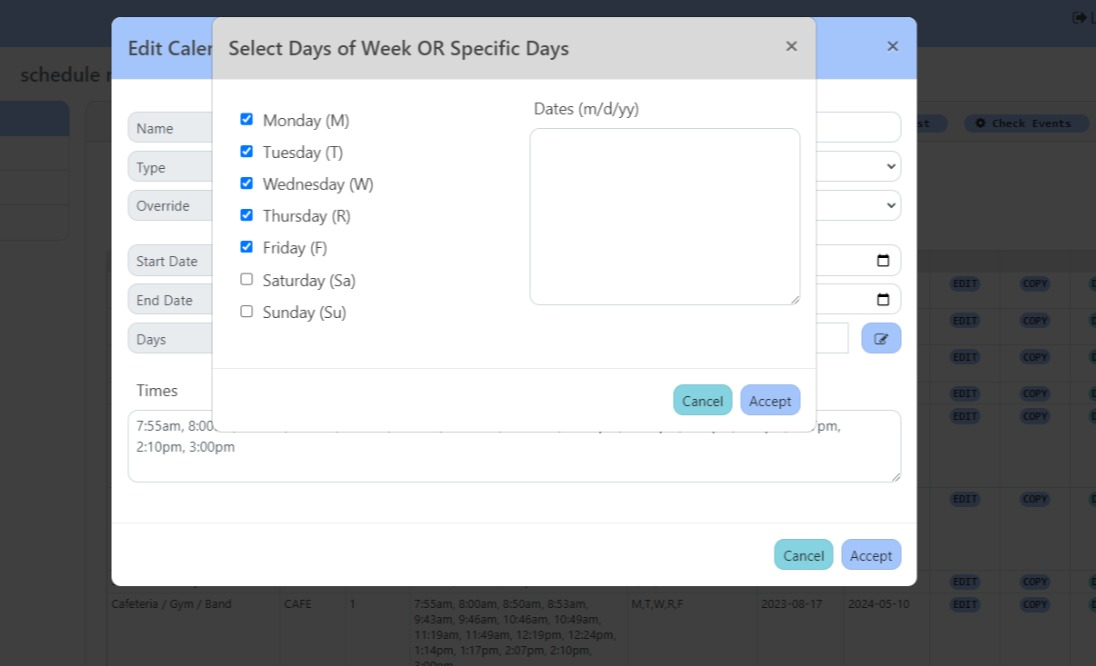
Days can be typed manually or selected using a checkbox dialog.
If specific dates are entered in this field, then day-of-week values (e.g. M,W,F) are ignored.
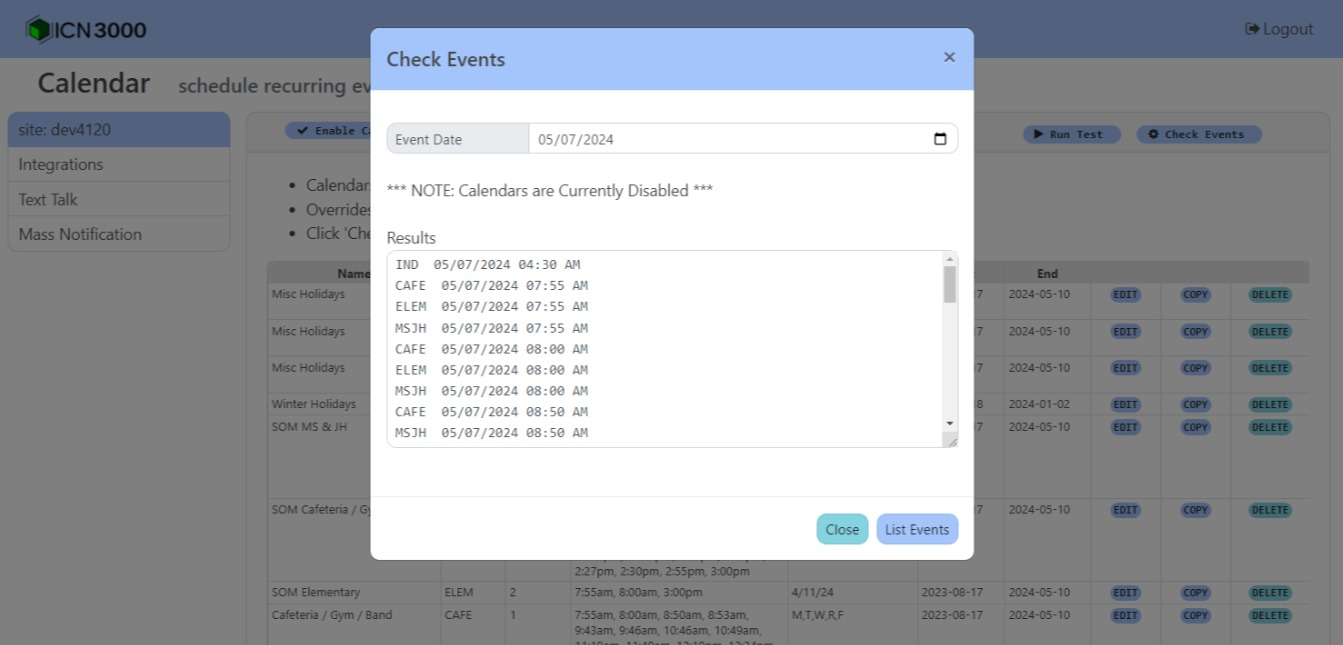
The Check Events button in the upper right corner of the Calendar page opens a dialog to list all calendar events for a give date. The events are listed in chronological order. Note that different signals will be raised at times which occur in multiple calendars.
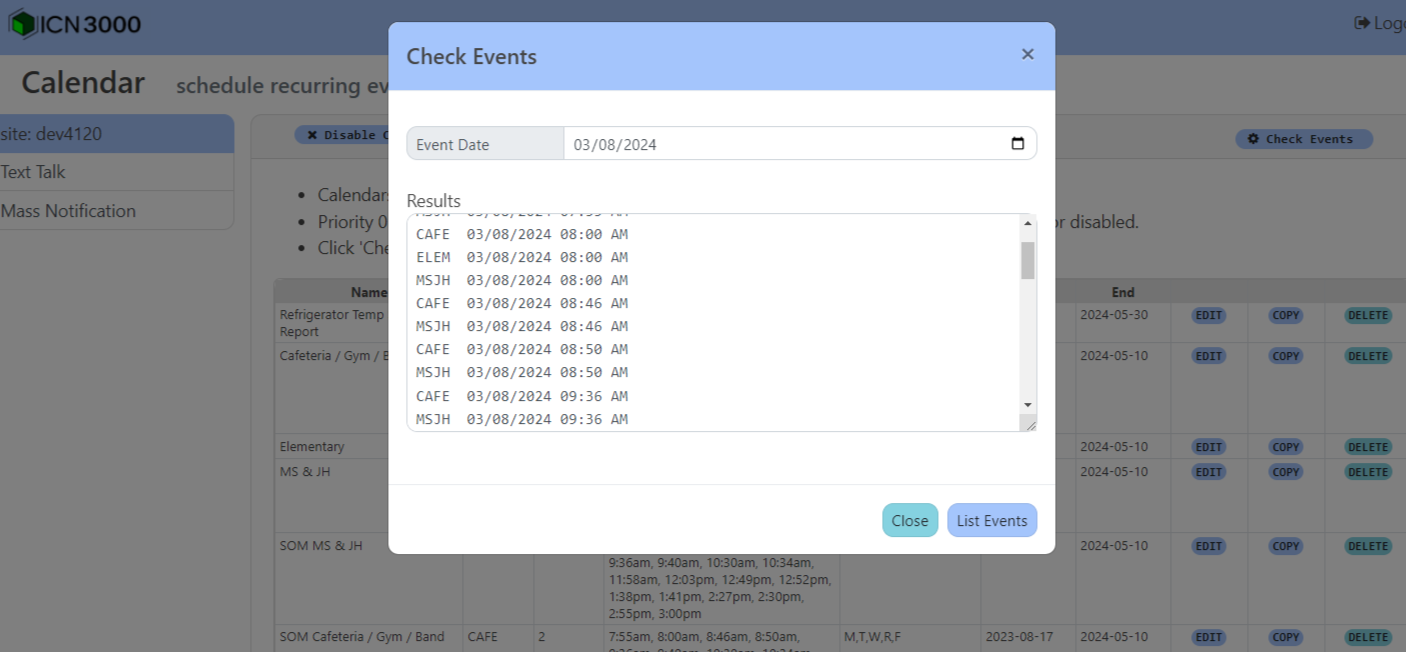
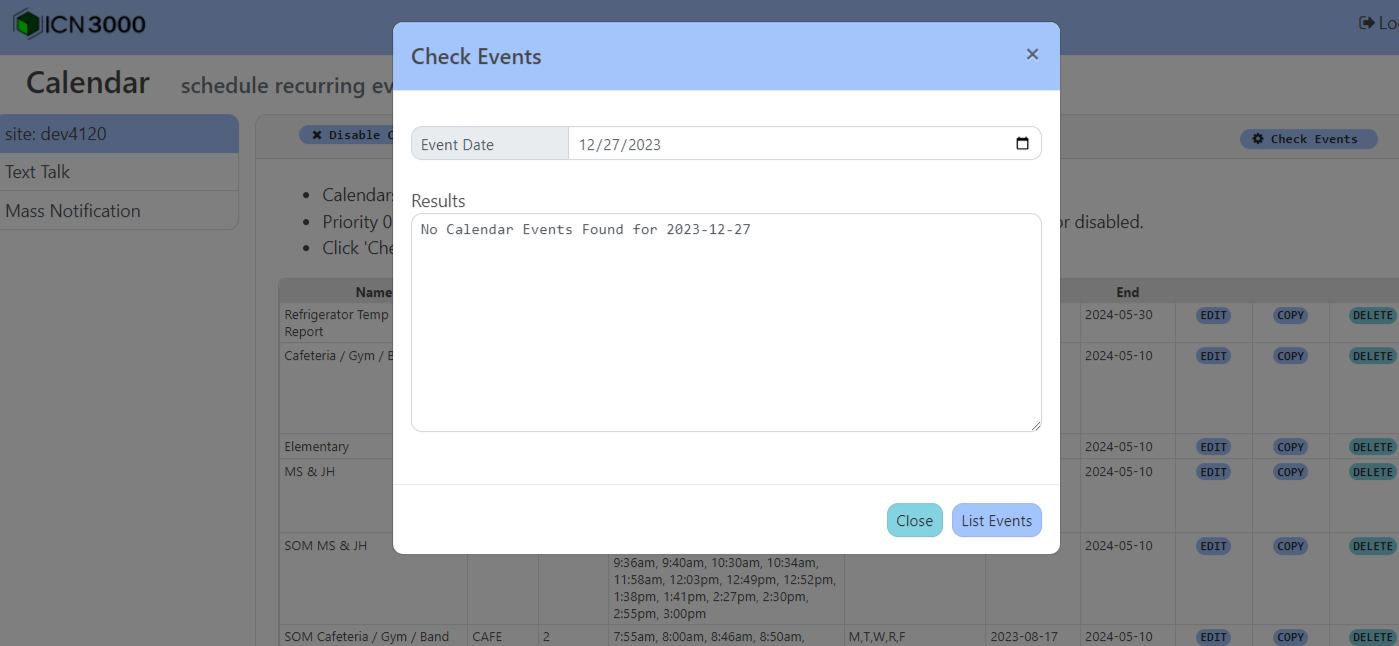
The holiday calendars in this example have a higher override level than the calendars for bells. Consequently, checking calendar events for a holiday should show something like this:
If calendars are disabled, then no calendar events (other than level 0 maintenance events) should occur, but the Check Events dialog will still show the events that would occur if calendars are enabled.
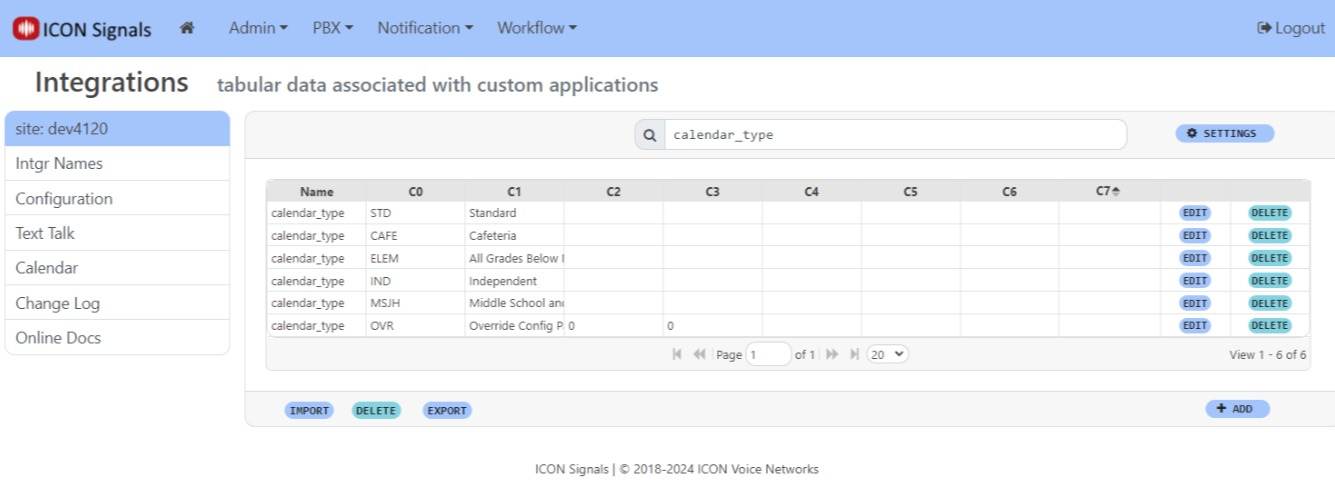
Custom calendar types can be added in the Workflow > Integrations page. Note that this is an uncommon task performed by sysadmins. Rules must be constructed to make use of new calendar types.
OVR Calendar TypeThe reserved calendar type OVR is used to:
disable or enable all override level calendars
optionally handle overrides by calendar type
optionally raise signal names of CAL-{type}-{month}-{day} instead of the default CAL-{type}-{day of week}
| column | purpose |
|---|---|
C2 |
disable(0) / enable(1) all override level calendars (level > 0) |
C3 |
if set to 1, overrides are dependent on calendar type |
C4 |
if set to m-d, signal names have format: CAL-{type}-{month}-{day} |
Override calendar enable / disable is configured by setting column C2 in the OVR calendar_type integration data row to 1 (enable) or 0 (disable). The Disable and Enable buttons in the Calendar page set this value.
By default signal names are CAL-{type}-{day of week indicator}.
If the C4 column value in the OVR calendar_type data row is set to d-m, then raised signal names will be of the form: CAL-{type}-{month}-{day}.
For example on Tuesday March 19, the default signal name raised might be:
CAL-STD-TSetting the C4 value to m-d changes that to:
CAL-STD-3-19There is a minor trade-off involved when the OverrideByType option is selected. Separate override calendars will be needed for each calendar type.
As an example, consider an elementary school, middle school and high school each having separate calendars and calendar types with different times for bells. A winter holiday override calendar will be needed for the elementary school calendar type. A second winter holiday override calendar will be needed for the middle school bells and a third for the high school bells.
Setting up these separate override calendars is basically a "copy-add" operation.
One final note on this subject. The text instructions on the calendar page will be different - depending on whether the OverrideByType option is configured. Note the difference in the screenshots below.
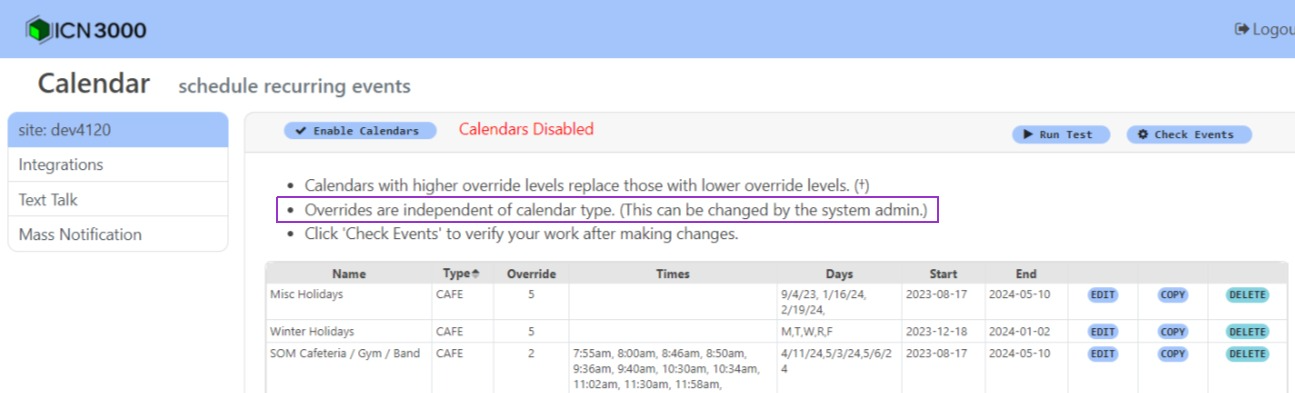
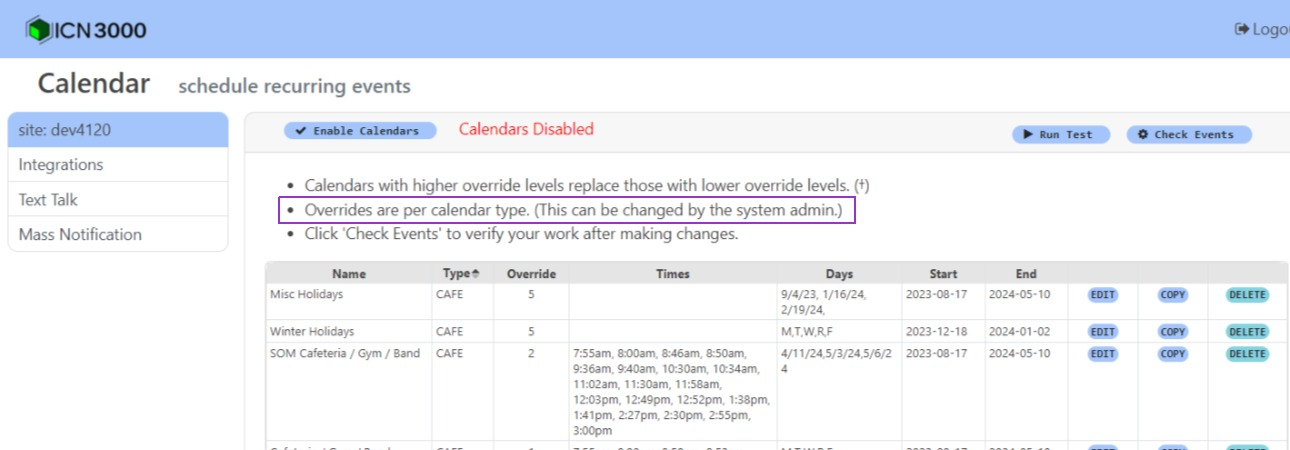
At discussed in section 2.5, when a calendar event is trigger ICON Signals raises a signal with a name of the form:
CAL-{type}-{day of week code}This allows us to execute different rules for different calendar types and even different days of the week if desired.
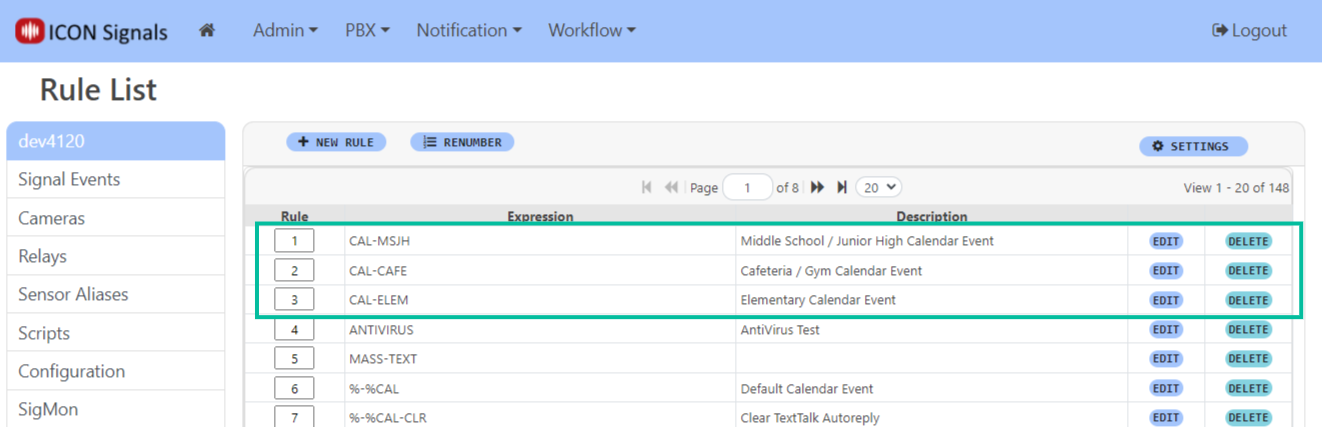
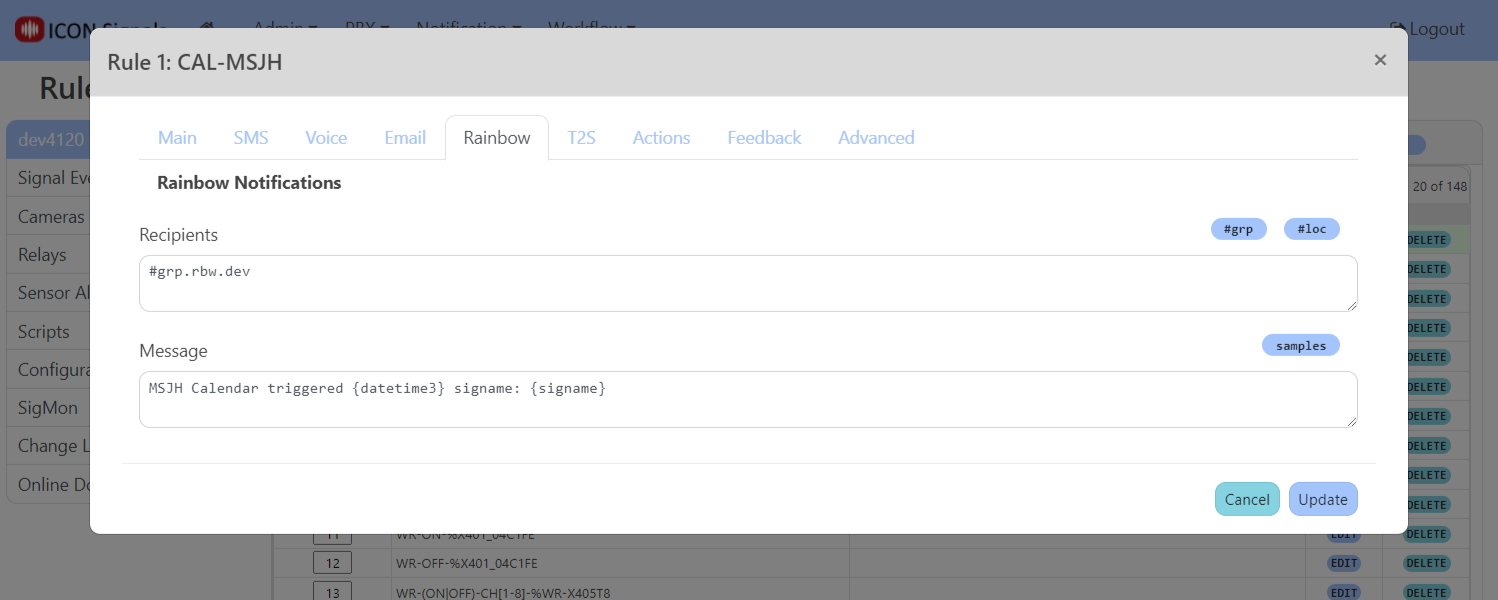
These example rules generate a Rainbow message with the rule name and signal name in the text. Related screenshots shown below.
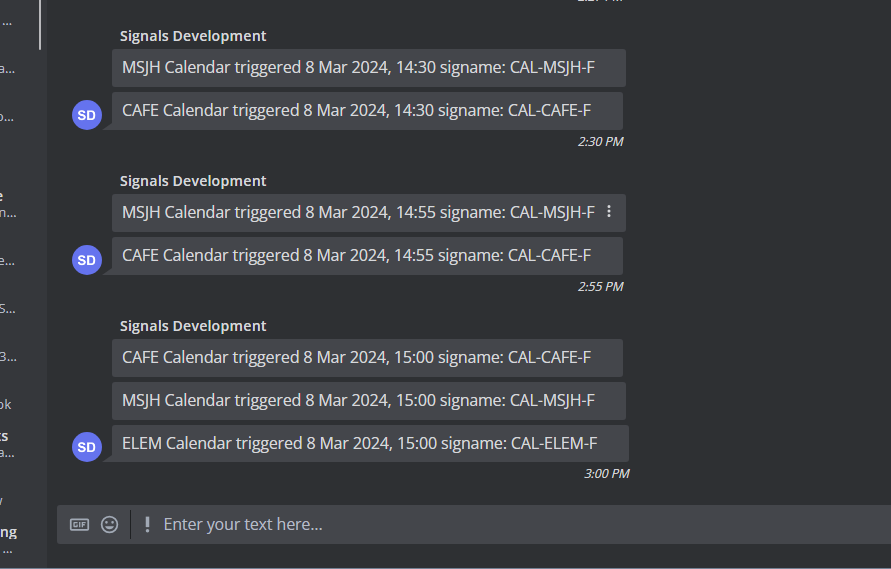
As stated in the introduction, this document focuses on the calendar event mechanism in ICON Signals and does not include details about what would happen in rule execution.
A school application will likely involve either closing relay contacts or playing recorded voice (i.e. ringing bell tone) calls to paging stations. Other applications will probably have different needs.
One consideration for future work might be a "check events" function that can check a range of days instead of just one day. This would make it easier to verify, for example, that no events are scheduled during winter holidays.
2018-2024 ICON Voice Networks