| date | desc |
|---|---|
| 8 Aug 2019 | initial |
The ControlByWeb WX-111 Wireless Digital Input Monitor has:
This document covers the WX-111. It is an addendum to a a previous document, webrelay-drycontact, covering the X-301 (2x2) and X-WR-1R12 (1x1) WebRelay devices.
Much of what is dicussed here also applies to the WX-110 Wireless Temperature Monitor, which will be covered in a separate document.
NOTE: The word "WebRelay" is used as a brand designator in this document, even for devices that have no relay outputs.
The device supports Stand-alone mode and Slave mode. Stand-alone mode is intended for use with a 5 VDC external wall transformer and provides all of the features we are accustomed to with the PoE WebRelay devices:
Slave mode is intended for use with 2 AA batteries. In this mode, the device periodically sends a data packet to an external WebRelay device or other system (e.g. ICON Signals).
The previously mentioned services are not available in this operating mode.
| power | desc |
|---|---|
| Extern-5-VDC | Works at higher temperature range compared to battery options |
| 5-VDC + 2xAA | Batteries only used when external power is lost |
| 2xAA | Only used for slave mode (send periodic data packet to another system) |
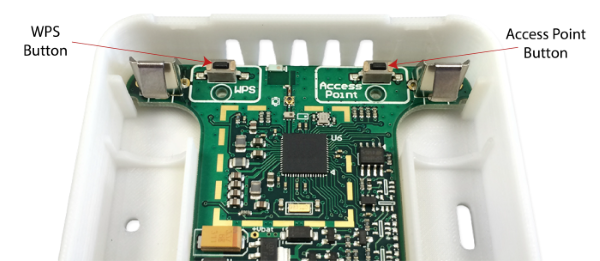
Two buttons are available to configure the device:
The buttons are reached by removing the top cover of the WX-111. I have found that the non-driver end of the ControlByWeb screwdriver is a good implement for pressing these buttons.
admin password: webrelayNote: You can use Access Point mode when running on battery power, but it uses a lot of energy and will drain the batteries very quickly. So, enter Access Point mode, get your configuration work done, and leave Access Point mode (by rebooting) as soon as possible.
Using this method assumes the the customer site router has a WPS button and that it is accessible. If true, then these steps should put the WX-111 on the network. However, you will still have to determine the WX-111 IP address on order to configure it.
WPS Mode is probably only useful if the WX-111 is correctly configured except for the SSID and password of the customer site network. In other words, it no configuration is needed.
To date, all development and testing of this device has been done using Access Point mode.
For ICON Signals integration, we support the following operating configurations:
TBD
 FC     MAC         SALT   INTERVAL  BAT   INP
0002 000CC804867D 00000000 000000F0  61    0C

61 == 97% battery life

F0 == 240  (4 minute interval)

0002 000CC804867D 00000000 000000F0  61    0D     inp1 closed
0002 000CC804867D 00000000 000000F0  61    0E     inp1 closed


0002 000CC804867D 00000000 000000F0  61    11111111 22222222 33333333  21, 25, 29
2018-2022 ICON Voice Networks